


How do I find my property in the Homestead application?
Once you have created your account and logged in, the system will automatically direct you to Step 2: Parcel Search within the application.
You can locate your property in several ways, including by Parcel Number, Property ID (PID), or Address. The most common methods are outlined below.
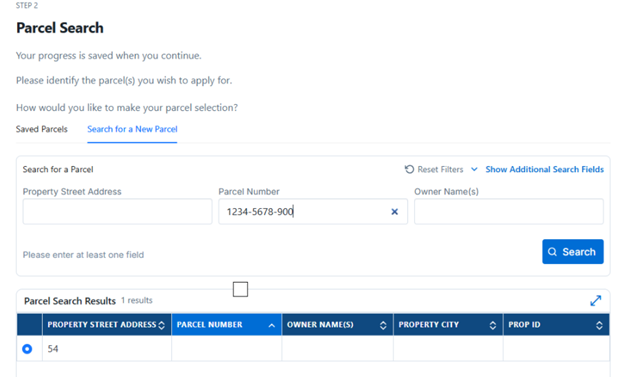
Option 1: Search by Parcel Number
- Navigate to Step 2: Parcel Search on the application page.
- Under ‘How would you like to make your parcel selection?’, select ‘Search for a New Parcel’.
- Enter the Parcel Number including dashes (the system will not recognize parcel numbers without dashes).
- Click Search.
- Select the correct parcel by clicking the radio button to the left of the result.
- Continue to the next step of the application to apply for the selected parcel.
Option 2: Search by Property ID (PID)
- Navigate to Step 2: Parcel Search on the application page.
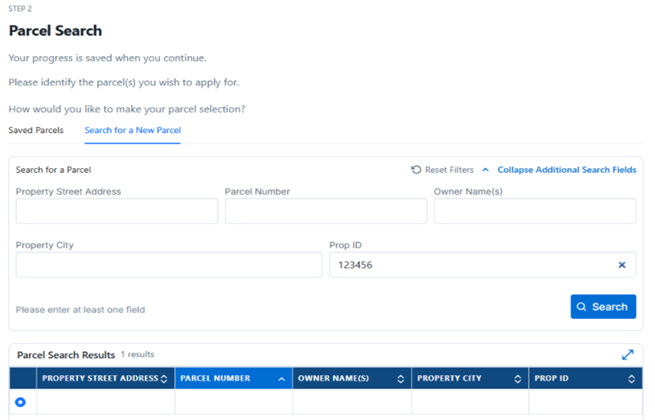
- Under ‘How would you like to make your parcel selection?’, select ‘Search for a New Parcel’.
- Click ‘Show Additional Search Fields’ to expand the filters.
- Enter the PID in the Prop ID field.
- Click Search.
- Select the correct parcel by clicking the radio button to the left of the result.
- Continue to the next step of the application to apply for the selected parcel.
Other Search Options
If you do not have a Parcel Number or PID, you may also locate your property using the property address.